How to connect an Ohme charger to 1app.energy
Connect your Ohme EV charger to 1app.energy with your Ohme email and password, and what to do if you signed up with Apple, Google or Facebook.
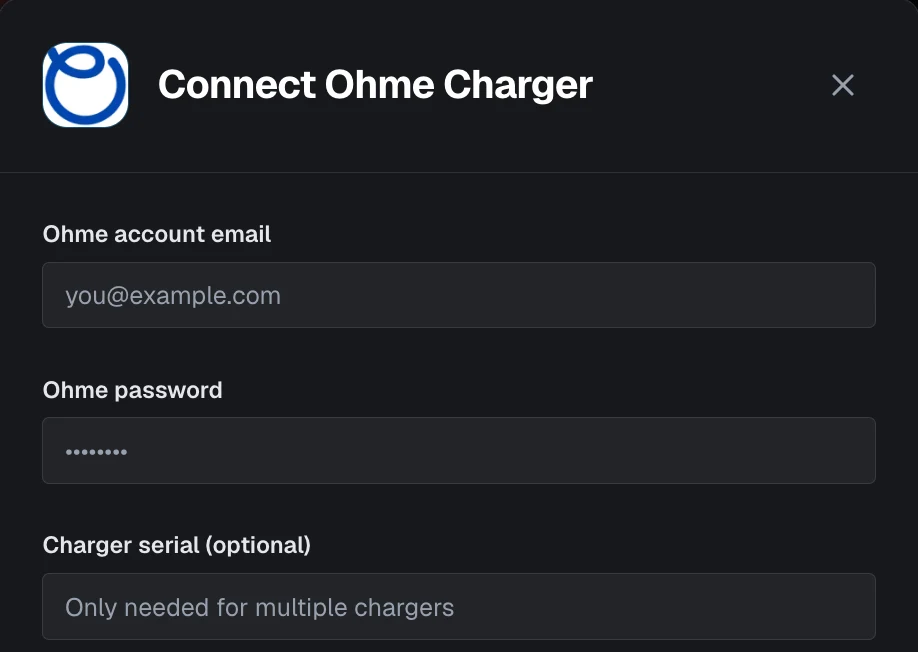
You connect an Ohme charger to 1app.energy with the same email address and password as your Ohme account.
Most people are connected in a minute. The one thing that catches people out is how they first signed up to Ohme.
If you created your Ohme account with Apple, Google or Facebook, it has no Ohme password yet, so 1app.energy cannot sign in with it. This guide shows how to fix that.
The quick version: connecting Ohme to 1app.energy
- In 1app.energy, go to Settings, then Devices, choose Add device and pick Ohme.
- Enter the email address and password of your Ohme account.
- Choose Connect Device. 1app.energy checks the details with Ohme before saving anything.
- If your Ohme account has more than one charger, pick the charger at this home from the list and connect again.
If you sign in to the Ohme app with Apple, Google or Facebook, add a password in the Ohme app first. Go to Settings and tap Add a password.
New to 1app.energy? The new customer setup guide for settings and devices walks through the rest of your setup.
Why Apple, Google and Facebook sign-ins cannot connect to 1app.energy
Ohme offers four ways to create an account: Apple ID, Google, Facebook or email.
When you sign up with Apple, Google or Facebook, that company confirms who you are, so Ohme never asks you for a password.
1app.energy signs in to Ohme with your Ohme email address and password, the same way other apps that work with Ohme do. With no password on the account, that sign-in fails, and 1app.energy shows that Ohme did not accept the details.
Any email address works, including Gmail, Outlook or iCloud. What matters is that your Ohme account has a password.
How to add an Ohme password if you signed up with Apple, Google or Facebook
- Open the Ohme app and stay signed in.
- Go to Settings and tap Add a password.
- Enter the password you want to use. Ohme turns your account into a "Sign in with email" account.
- Note the email address shown at the top of the Settings screen, under your name. That is your Ohme sign-in email from now on.
- In 1app.energy, connect Ohme with that email address and your new password.
From then on, you sign in to the Ohme app with that email and password as well. These steps come from Ohme's guide to sharing a charger, which uses the same change so more than one person can sign in.
If you signed up to Ohme with Apple's Hide My Email
If you chose Hide My Email when you signed up with Apple, the email under your name in Ohme's Settings ends in @privaterelay.appleid.com.
That is the address Ohme knows you by, so use it exactly as shown when you connect to 1app.energy. Apple forwards emails sent to it to your normal inbox.
If you cannot see Add a password in the Ohme app
Contact Ohme support and ask them to help you add an email and password sign-in to your Ohme account.
Once your Ohme account has a password, connect it to 1app.energy as above.
What 1app.energy keeps from your Ohme sign-in
- 1app.energy checks your email address and password with Ohme when you connect.
- It then keeps your email address and an encrypted sign-in token from Ohme. It does not keep your Ohme password.
- If you change your Ohme password later, Ohme ends the old sign-in, so reconnect Ohme in 1app.energy. If Ohme stops accepting the saved sign-in, 1app.energy lets you know.
If 1app.energy ever shows your Ohme details as saved but the charger as not connected, why saved credentials do not mean your energy device is connected explains the difference.
How an Ohme charger fits with solar, a battery and your tariff
Once Ohme is connected, 1app.energy can show your charger's state and planned charging beside your solar, battery and tariff, where supported.
That matters most on smart EV tariffs. Octopus Intelligent Go: what really happens to your home battery explains how EV charging can drain a home battery, and the Octopus Charge Cap guide covers how Ohme fits with it.
To choose how much 1app.energy should do for you, see which 1app.energy Smart Control mode should you use.
Common questions about connecting Ohme to 1app.energy
Do I need a Google account to connect Ohme?
No. Any email address works. Your Ohme account just needs a password.
Why does 1app.energy say Ohme did not accept my details?
Either the email or password has a typo, or your Ohme account was created with Apple, Google or Facebook and has no password yet. Add one in the Ohme app under Settings, Add a password.
I have more than one Ohme charger. What do I do?
Connect as normal. If your Ohme account has more than one charger, 1app.energy lists them so you can choose the one at this home, then connect again.
Does connecting 1app.energy change how I use the Ohme app?
Connecting does not. If you add a password to an Apple, Google or Facebook account, Ohme switches you to signing in with your email and that password.
I have forgotten my Ohme password. What do I do?
On the Ohme app's sign-in screen, tap Trouble signing in? and Ohme emails you a link to reset it.
Is my Ohme password safe with 1app.energy?
1app.energy uses it once to check your account with Ohme, then keeps only an encrypted sign-in token, not the password itself.
Final thought on connecting your Ohme charger
Most Ohme connection problems come down to one thing: an account created with Apple, Google or Facebook has no password. Add one in the Ohme app, and connecting takes a minute.
Visit 1app.energy/signup to check your setup and start signup.
Does this sound like your home?
Your setup might already qualify.
Choose your inverter to start. Supported homes create an account straight away; other setups join the compatibility list.