SolisCloud sign-in or API key: which should you use?
Choose between SolisCloud sign-in and API-key setup for a supported Solis home, with clear limits around plant access, monitoring and control.
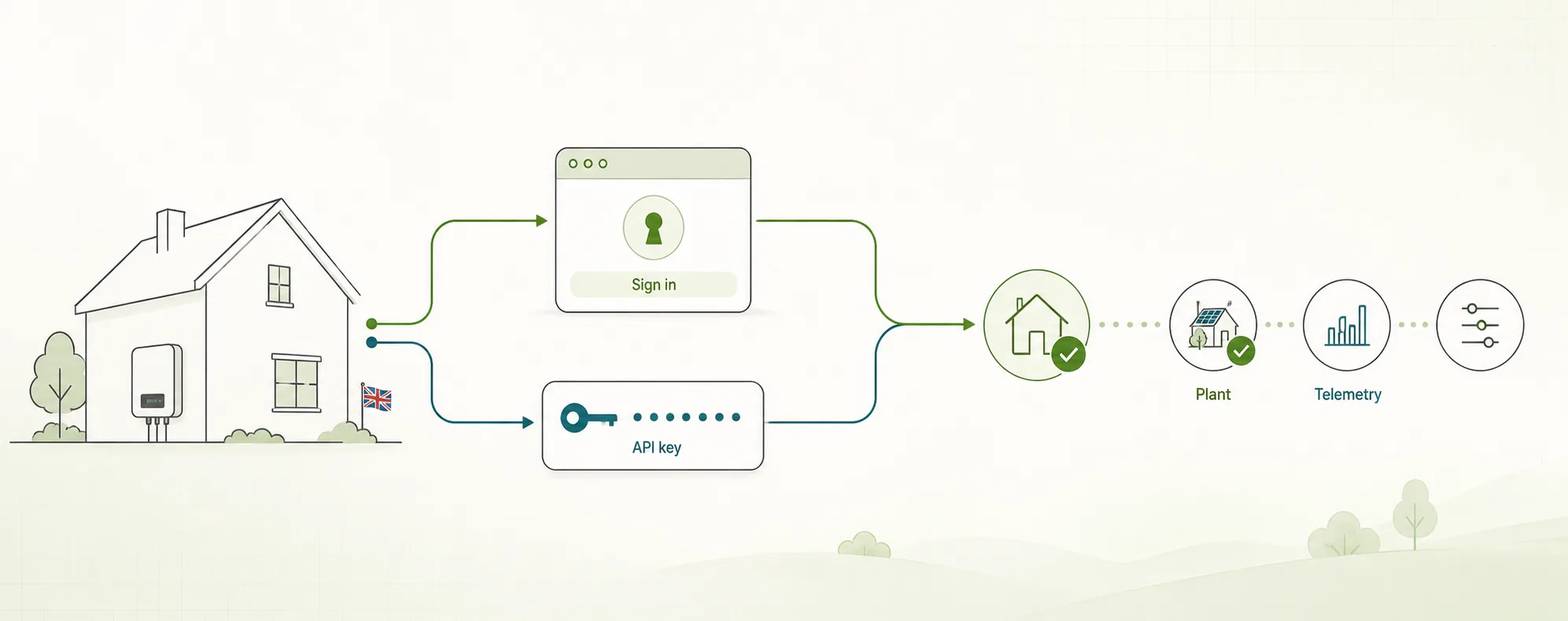
Connecting a Solis inverter to a home-energy app can begin in two different ways: signing in with SolisCloud or entering a SolisCloud API key.
They are not simply two copies of the same form. The right route depends on how your SolisCloud account is set up, whether another service already uses the account connection, and whether you can access the correct plant.
For most new 1app.energy connections, SolisCloud sign-in is the simplest place to start. API-key setup remains useful when your connection path requires it, including some homes already linked to Axle Energy or another battery-control service.
This guide helps you choose without confusing account access, monitoring data and battery control.
The quick decision
| Your situation | Start here | Why |
|---|---|---|
| You are connecting a supported Solis home for the first time | SolisCloud sign-in | It avoids requesting and copying a separate API key |
| Your Solis account is already linked to Axle Energy or another battery-control service | API-key setup | 1app.energy currently directs these homes to the separate key route |
| Sign-in succeeds, but more than one inverter or plant appears | SolisCloud sign-in, then select the correct inverter | Account access is not enough to identify the home |
| Your saved SolisCloud access has expired | Reconnect with SolisCloud | Fresh authorisation may be needed before data can resume |
| You already have an active SolisCloud Key ID and Secret | API-key setup | You can verify the credentials and choose the correct plant directly |
| You cannot see API Management in SolisCloud | SolisCloud sign-in, or request API access from Solis | Solis enables API access separately for eligible end-user accounts |
Whichever route you use, do not treat a successful first screen as proof that everything is connected. 1app.energy still needs to verify the correct inverter and receive usable data before the device should be shown as live.
For the wider setup sequence, see the Solis, Zappi and Octopus connection checklist.
Option 1: SolisCloud sign-in
SolisCloud sign-in is the usual starting point for a new supported Solis connection.
You choose Solis in 1app.energy, continue to SolisCloud, sign in there and approve the requested access. SolisCloud then returns you to 1app.energy. Your SolisCloud password is entered with SolisCloud, not copied into a 1app.energy credential field.
The route is useful because it removes several manual steps:
- no support ticket just to create an API key;
- no Key ID or Secret to copy;
- no risk of pasting a normal SolisCloud password into an API-key field;
- a clearer reconnect path if the saved authorisation later expires.
Sign-in can still need one more decision. A SolisCloud account may contain more than one plant or inverter, especially for an installer, landlord or homeowner with multiple properties. In that case, 1app.energy asks you to choose the inverter for this home before marking the device connected.
That selection is a safety check, not an unnecessary extra screen. It prevents one property's data from appearing against another installation.
Option 2: SolisCloud API-key setup
API-key setup uses a Key ID and Key Secret created in SolisCloud API Management. These are separate from your normal SolisCloud email and password.
Solis' own guidance says API access is available to end users through an API access request. Once enabled, the account holder can activate API Management and retrieve the credentials. Solis also states that API access does not itself provide remote-control access.
That last distinction matters:
An API key can prove access to supported monitoring data. It does not, by itself, prove that battery control is available or safe for your inverter.
Use the API-key route when 1app.energy directs you to it, or when you already have working credentials and need to connect the plant they can access.
The practical steps are:
- Obtain API access for the SolisCloud account that owns the plant.
- Activate API Management in SolisCloud.
- Copy the Key ID and Key Secret.
- Enter both values in 1app.energy.
- Ask 1app.energy to find the plants available to those credentials.
- Select the correct plant and let the connection verify.
The detailed screenshots and request template are in how to get your SolisCloud API key.
Treat the Key Secret like a password. Do not put it in public screenshots, support forums or ordinary chat messages. If you believe it has leaked, revoke it in SolisCloud and replace the credentials in connected services.
Why another service can change the best route
Some Solis homes already use Axle Energy or another battery-control service before joining 1app.energy.
That does not automatically make either service incompatible. It does mean the account and control relationship should not be guessed. 1app.energy currently recommends the API-key route in this situation because the SolisCloud sign-in path is not presented as interchangeable with an existing third-party authorisation.
The safe rule is to preserve the working service and follow the route shown during 1app.energy setup. Do not disconnect an existing battery service merely to experiment with another sign-in method.
If the connection path is unclear, contact 1app.energy support with the name of the existing service, your Solis inverter model and whether you own the SolisCloud plant. Do not send passwords or API secrets.
Plant ownership and selection are common blockers
Both connection methods depend on the SolisCloud account being able to access the correct plant.
If your installer created the plant under their own account, your personal login or API key may be valid but still return no plant for your home. A valid credential is not proof of ownership or access to the installation.
Solis publishes a separate process for changing a plant's system owner. Use that process, or ask the installer to give the right account access, rather than trying credentials from an unrelated account.
When 1app.energy finds several plants or inverters, compare the plant name, property and inverter serial number before selecting one. The serial number is available on the inverter and in SolisCloud.
For more on why the app waits for verification, read why saved credentials do not mean a device is connected.
What a successful connection proves
A successful connection proves one stage at a time.
| Evidence stage | What it proves | What it does not prove |
|---|---|---|
| SolisCloud sign-in completed | SolisCloud accepted the authorisation | The correct inverter has been selected |
| API credentials accepted | The key can access the Solis API | The key provides remote control |
| Plant and inverter selected | The connection points to the intended installation | Fresh telemetry is already available |
| Fresh telemetry received | Supported inverter data is arriving | Every control action is supported |
| Control enabled for an action | That action is available for the verified setup | Every Solis model and action is supported |
1app.energy supports suitable Solis homes, but support is not a blanket promise for every model, firmware, account or control action. Battery control depends on the specific inverter, provider permissions, verified capability, customer settings and current device state.
Provider acceptance is also not physical proof. If a control is enabled, the useful evidence comes afterwards: provider-native readback, believable battery and grid telemetry, reserve protection and restoration to the expected state.
The guide to choosing a 1app.energy Smart Control mode explains the customer-facing modes after a supported connection has been verified.
Troubleshooting each route
SolisCloud sign-in returns to 1app.energy but setup is not complete
Check whether the account contains more than one inverter. If it does, select the inverter for this home. Until that selection succeeds, the device should remain pending rather than appearing falsely connected.
1app.energy asks you to reconnect SolisCloud
Saved authorisation can expire or be revoked. Follow the reconnect prompt and sign in again. This is evidence that access needs refreshing, not proof that the inverter or battery has failed.
API-key setup finds no plants
First check that both the Key ID and Key Secret came from the same SolisCloud account. Then confirm that account can see the plant in SolisCloud. If the installer owns the plant, arrange the correct access or ownership change.
API-key setup finds the wrong plant
Do not continue with a plant you cannot identify. Match the property and inverter serial number, then select the correct installation.
The device connects but live values are delayed
Connection and telemetry are separate stages. SolisCloud updates may not be instantaneous, and newly connected data can take time to settle. Check again after the next provider update. If values remain stale, use the reconnect or support path shown in 1app.energy rather than assuming a zero is a real reading.
The guide to reading inverter data without chasing every snapshot explains why one provider update is not the whole physical story.
Which route should you use today?
Choose SolisCloud sign-in if this is a new supported connection and 1app.energy does not identify an existing service conflict. It is usually the shortest route.
Choose API-key setup if the setup flow directs you there, if your Solis account is already linked to Axle Energy or another battery-control service, or if you already have active API credentials for the correct plant.
Then verify the same three things whichever route you chose:
- the selected plant belongs to this home;
- fresh, believable telemetry arrives;
- any control shown is explicitly supported and enabled for this installation.
That is the difference between completing a form and establishing a trustworthy home-energy connection.
Sources checked on 25 August 2026
- Solis: request API access, for end-user API access, API Management and the separation from remote-control access.
- Solis: request a change of system owner, for the current plant ownership change process.
- Current 1app.energy connection screens, backend contracts, tests and production health diagnostics, for the sign-in, API-key, plant-selection and reconnect paths.
Ready to connect a supported Solis home? Review the Solis integration, then start 1app.energy setup. If another service already controls your battery, keep it connected and tell support before changing the connection route.
Does this sound like your home?
Your setup might already qualify.
Tell us which devices and tariff you are on. We review every request and invite in order of fit, not sign-up date.