How to get your SolisCloud API key for your Solis hybrid inverter
Request SolisCloud API access, activate API Management, and copy Key ID and Secret so 1app.energy can connect supported Solis inverter data.
To connect a supported Solis inverter to 1app.energy with API-key setup, you need two values from SolisCloud:
- API Key ID
- API Key Secret
They are not your normal SolisCloud password. They come from API Management after Solis enables API access on the account that owns the plant.
The quick version
- Open the Solis support ticket form.
- Choose API Access Request.
- Enter the SolisCloud email, plant name or Plant ID, inverter serial number and country.
- Wait for Solis to approve API access.
- Sign in to SolisCloud on a computer.
- Open Service > API Management.
- Activate the Plant Monitoring API.
- Select View Key and complete email verification.
- Copy the Key ID and Key Secret.
- Paste both values into 1app.energy.
That is the whole route.
Before you start
Check these first:
- You can sign in to the SolisCloud account for the correct home.
- That account can see the correct plant.
- You can access the email inbox linked to the SolisCloud account.
- You know the plant name, Plant ID or inverter serial number.
If your installer owns the plant in SolisCloud, ask them to transfer access or generate the API key from the account that owns the plant.
Step 1: Request API access
Open the Solis support ticket form:
Submit a Solis API access ticket
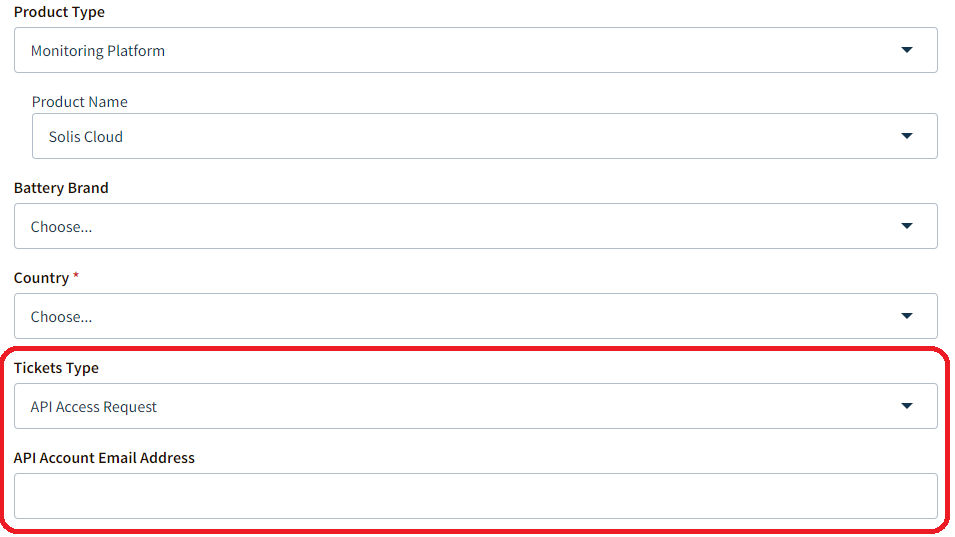
Use these details where the form asks:
- Product Type: Monitoring Platform
- Product Name: Solis Cloud
- Tickets Type: API Access Request
- API Account Email Address: your SolisCloud login email
- Country: your country
Add at least one plant identifier: plant name, Plant ID or inverter serial number.
If the form asks for a message, you can use this:
Please enable API access on my SolisCloud account so I can generate
an API Key ID and Secret from API Management.

SolisCloud login email:
Plant ID or plant name:
Inverter serial number:
Country:
Submit the ticket and wait for Solis to approve it. You can continue the rest of your 1app.energy setup while you wait.
Step 2: Open API Management
After Solis approves API access, sign in at soliscloud.com on a computer.
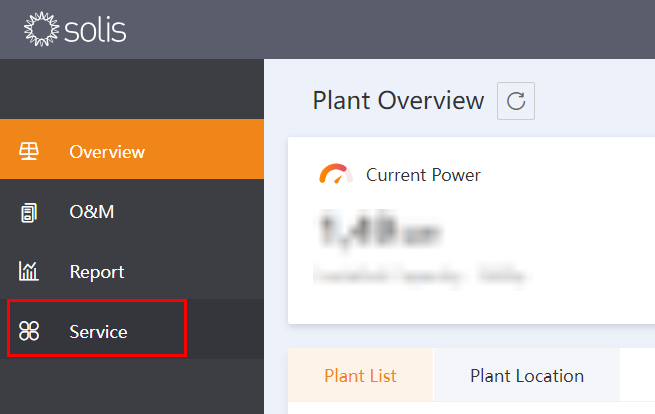
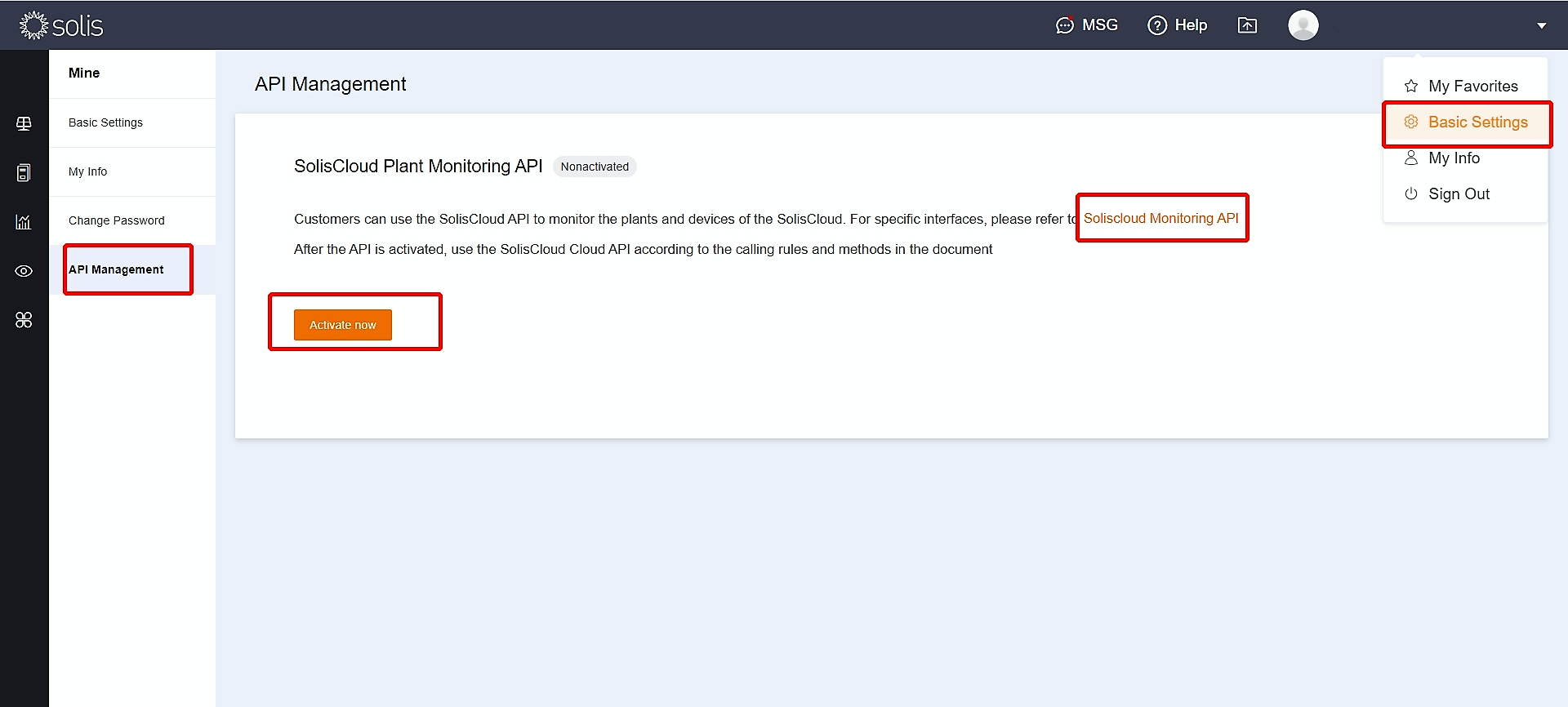
From the SolisCloud sidebar, open Service, then choose API Management. Some accounts may show it under Basic Settings > Mine > API Management.
If the page says Nonactivated, select Activate now, then confirm.
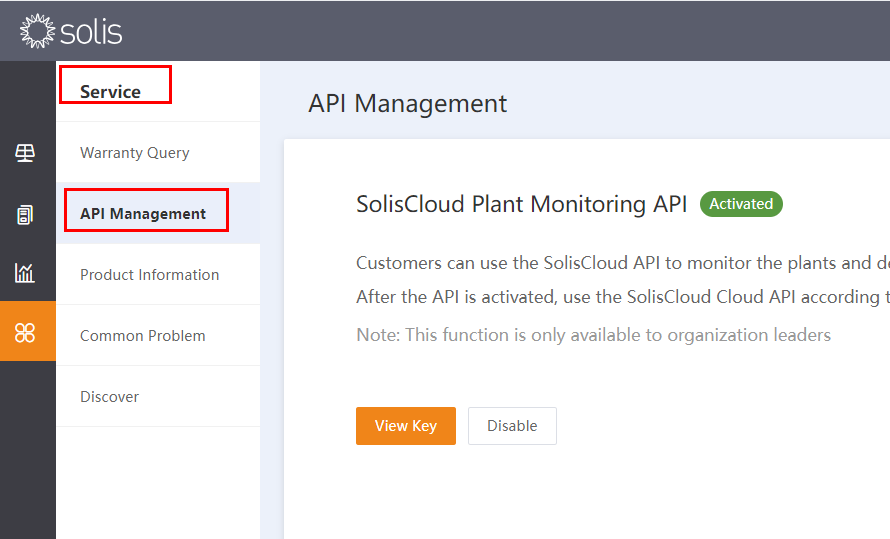
Once activated, the page should show View Key.
Step 3: Copy the Key ID and Key Secret
Select View Key. SolisCloud may ask you to verify by email before showing the key.
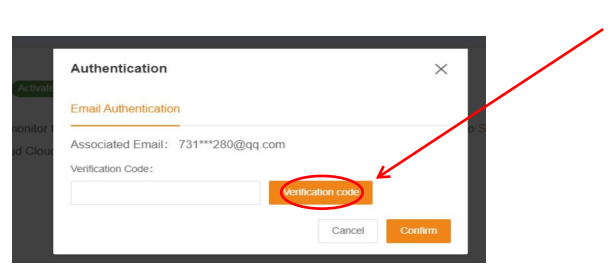
After verification, copy:
- API ID, Key ID or KeyID
- API Secret, Key Secret or KeySecret
You do not need to copy the API URL for 1app.energy.
Step 4: Paste both values into 1app.energy
In 1app.energy, open Settings > Devices, choose Solis, then choose API-key setup.
Paste:
- API Key ID
- API Key Secret
Select Find plants. 1app.energy checks SolisCloud, lists the plants linked to the key, and asks you to choose the correct home if more than one plant is available.
When the connection is verified, Solis inverter data can appear in 1app.energy after the next sync.
Keep the key safe
Treat the Key Secret like a password:
- Do not post it in public.
- Do not include it in screenshots.
- Do not send it in ordinary support messages.
If you think it has leaked, disable the key in SolisCloud API Management and replace it in any service that used it.
Common questions
Why can I not see API Management?
Many SolisCloud accounts need API access enabled by Solis first. Submit the API access ticket, wait for approval, then check again on a computer.
Can my installer generate the key?
Yes, if the installer owns or manages the correct plant in SolisCloud. The key must be able to read the plant for your home.
Is the Key Secret my SolisCloud password?
No. It is a separate API secret from API Management. Do not paste your normal SolisCloud password into 1app.energy.
Does the API key enable battery control?
Not by itself. API-key setup is for supported data access. Battery control depends on the inverter, verified capability and customer-enabled settings.
Sources checked on 17 June 2026
- SolisCloud, for the live account entry point.
- Solis support ticket form, for the API access request path.
More setup guides
- How to get your Octopus Energy API key
- How to get your myenergi API key for zappi and eddi
- All device setup guides
Visit 1app.energy/signup to start onboarding.
Does this sound like your home?
Your setup might already qualify.
Tell us which devices and tariff you are on. We review every request and invite in order of fit, not sign-up date.