How to get your myenergi API key for zappi and eddi
Generate your myenergi API key and hub serial so 1app.energy can connect supported zappi EV charging and discover eddi hot-water monitoring.
To connect a supported zappi EV charger to 1app.energy, you need two values from your myenergi account:
- Hub serial number
- myenergi API key
Use the original myenergi account that registered the devices. Shared accounts often do not show the API-key option.
The quick version
- Sign in at myaccount.myenergi.com.
- Open Products.
- Find the Gateway Product.
- Copy the gateway SN as the hub serial number.
- Select Advanced.
- Select Generate new API key.
- Copy the API key immediately.
- Open Settings > Devices in 1app.energy.
- Choose zappi.
- Paste the hub serial number and API key.
That is the whole setup.
Before you start
Check these first:
- You can sign in to the myenergi account that registered the zappi.
- You can see the gateway device in Products.
- You are ready to copy the API key straight away.
Generating a new myenergi API key replaces the old one. If another app uses the current key, you may need to update that app with the new key as well.
Step 1: Open Products
Sign in at myaccount.myenergi.com, then open Products.
Find the Gateway Product. This is usually a myenergi Hub, or a newer zappi, eddi or Libbi with Ethernet or WiFi acting as the gateway.
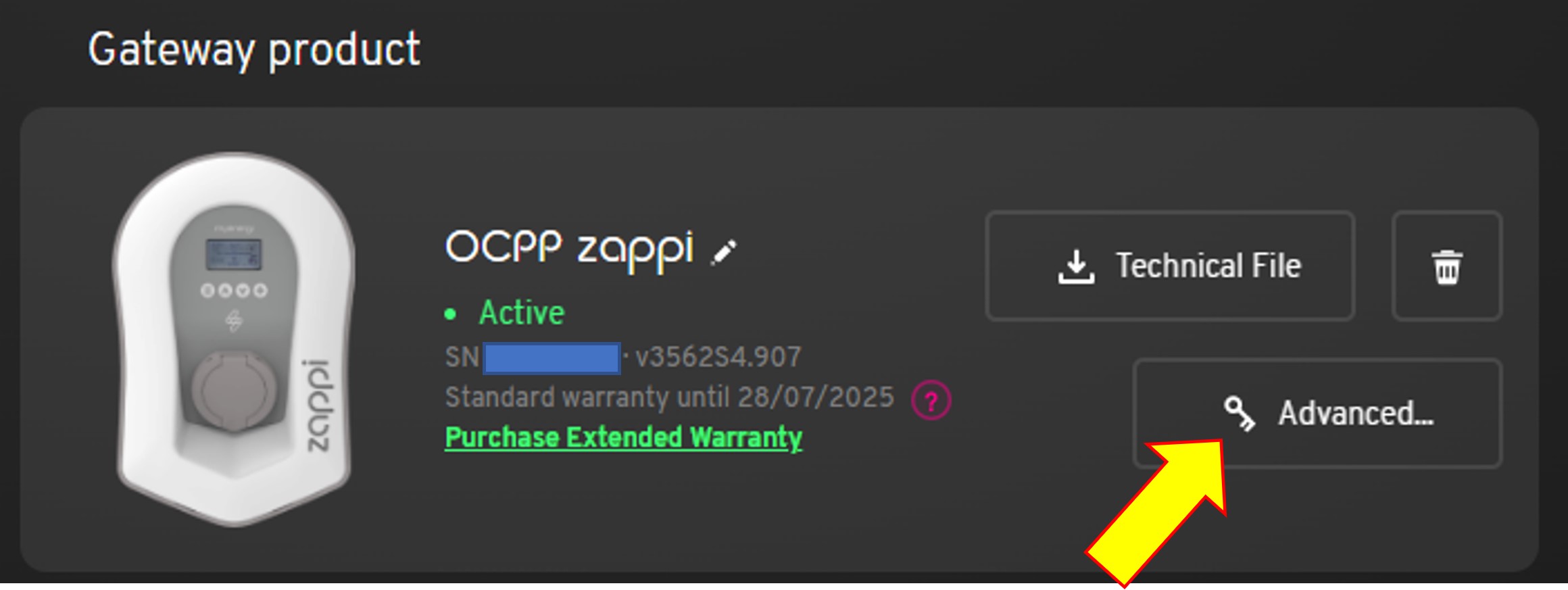
Copy the SN shown next to the gateway. This is the hub serial number for 1app.energy.
Step 2: Generate the API key
Select Advanced next to the gateway.
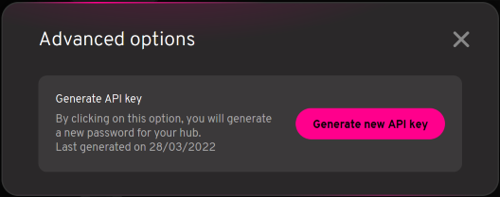
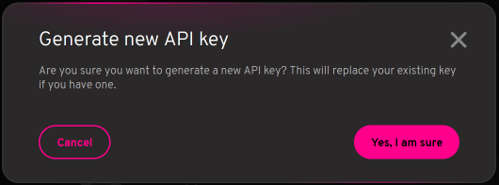
Select Generate new API key, then confirm.
Copy the key when it appears.
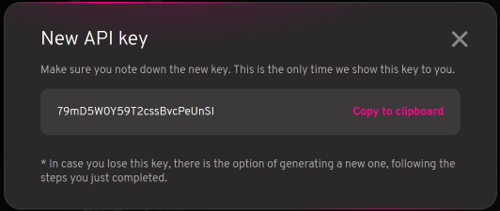
This may be the only time the key is shown. If you lose it, generate a new one.
Step 3: Paste both values into 1app.energy
In 1app.energy, open Settings > Devices, choose zappi, then paste:
- Hub serial number
- API key
1app.energy checks the details before saving. When the connection is verified, supported zappi charging data can appear after the next sync.
What if the same myenergi account has an eddi?
1app.energy checks whether the same myenergi account has an eddi.
- If the account has one eddi, it can be added as a separate hot-water device.
- If the account has more than one eddi, you must choose the correct one.
- If the account has no eddi, the zappi connection continues normally.
zappi and eddi stay separate in 1app.energy. zappi is EV charging. eddi is hot-water diversion. Connecting eddi starts with monitoring and does not automatically enable manual boost.
For the wider eddi explanation, read myenergi eddi solar hot water in the whole-home picture.
Common questions
I cannot see Advanced. What should I do?
Check that you are using the original registering account, not a shared account. If your installer set it up, ask them to generate the key or transfer the device.
Which serial number should I use?
Use the gateway serial number. Do not use a separate zappi, eddi or Libbi serial if it is not the gateway.
Is the API key my zappi PIN?
No. The zappi PIN is for local charger access. The myenergi API key comes from myaccount and belongs to the gateway.
Will a new key break another integration?
It can. A new key replaces the old one, so another tool such as Home Assistant may need updating.
What zappi data does 1app.energy use?
Where supported, 1app.energy uses zappi charging context to help explain EV demand alongside solar, battery and tariff behaviour. Control depends on supported devices, verified credentials and customer-enabled settings.
Source and screen check on 25 August 2026
The account steps and screenshots were checked against the myenergi key-generation flow. If myenergi changes the labels, follow the live myaccount prompts and copy the gateway serial number plus generated API key.
More setup guides
Visit 1app.energy/signup to start onboarding.
Does this sound like your home?
Your setup might already qualify.
Tell us which devices and tariff you are on. We review every request and invite in order of fit, not sign-up date.