Octopus API key: where to find it and connect your account
Find your Octopus Energy API key and account number, connect them safely to 1app.energy, and see what is checked before your tariff goes live.
To connect Octopus Energy to 1app.energy, you need two values from the same Octopus electricity account:
- Your account number, usually starting
A- - Your API key, usually starting
sk_live_
Use the Octopus website for this. The mobile app may not show every account setting.
The quick version
- Sign in at octopus.energy.
- Copy your account number from the account dashboard or a bill.
- Open account settings.
- Find Developer settings or API access.
- Copy or generate the API key.
- Open Settings > Devices in 1app.energy.
- Choose Octopus Energy.
- Paste the account number and API key.
- Let 1app.energy check the account before saving.
That is the setup.
Before you start
Check these first:
- You can sign in to the Octopus web account for this home.
- The account has an active electricity supply.
- The account number and API key come from the same account.
- If one Octopus account covers more than one property, contact support@1app.energy before connecting.
If you are still deciding whether Octopus fits your battery or EV setup, read the Octopus Energy integration page and the Octopus daytime EV-battery use case.
Step 1: Find your account number
Sign in at octopus.energy. Your account number is usually shown on the account dashboard and on your bill.
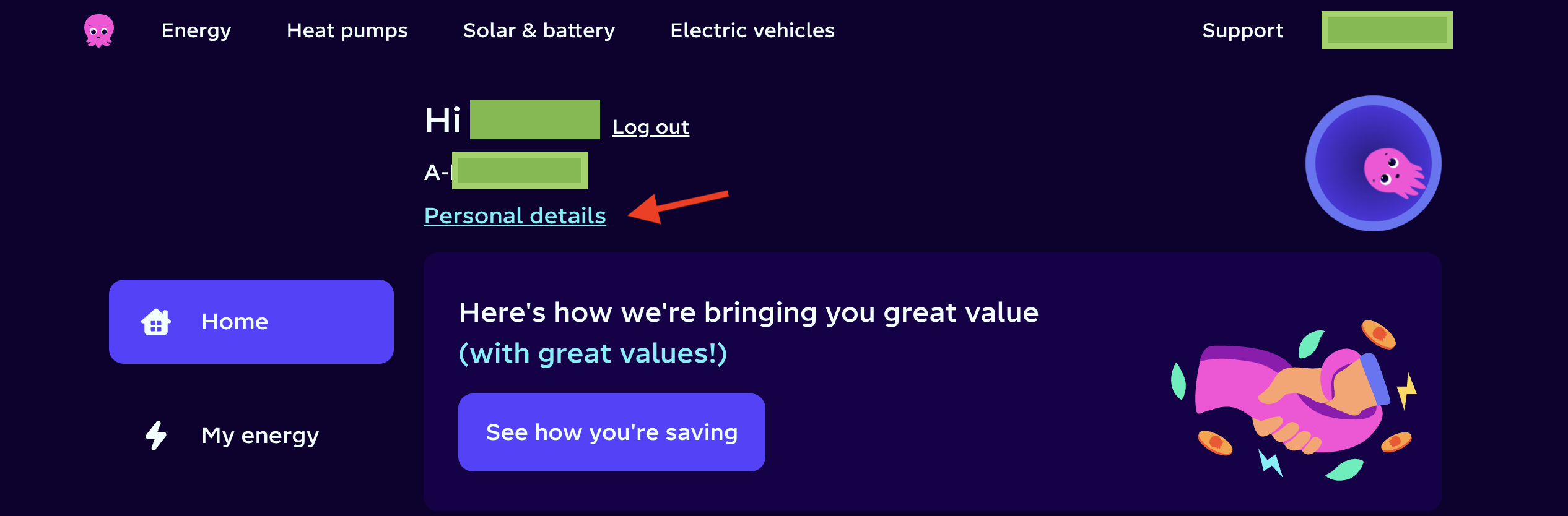
Copy the full number, including the A- prefix.
Step 2: Find your API key
Open your Octopus account settings. In the account shown below, Personal details opens Your settings.
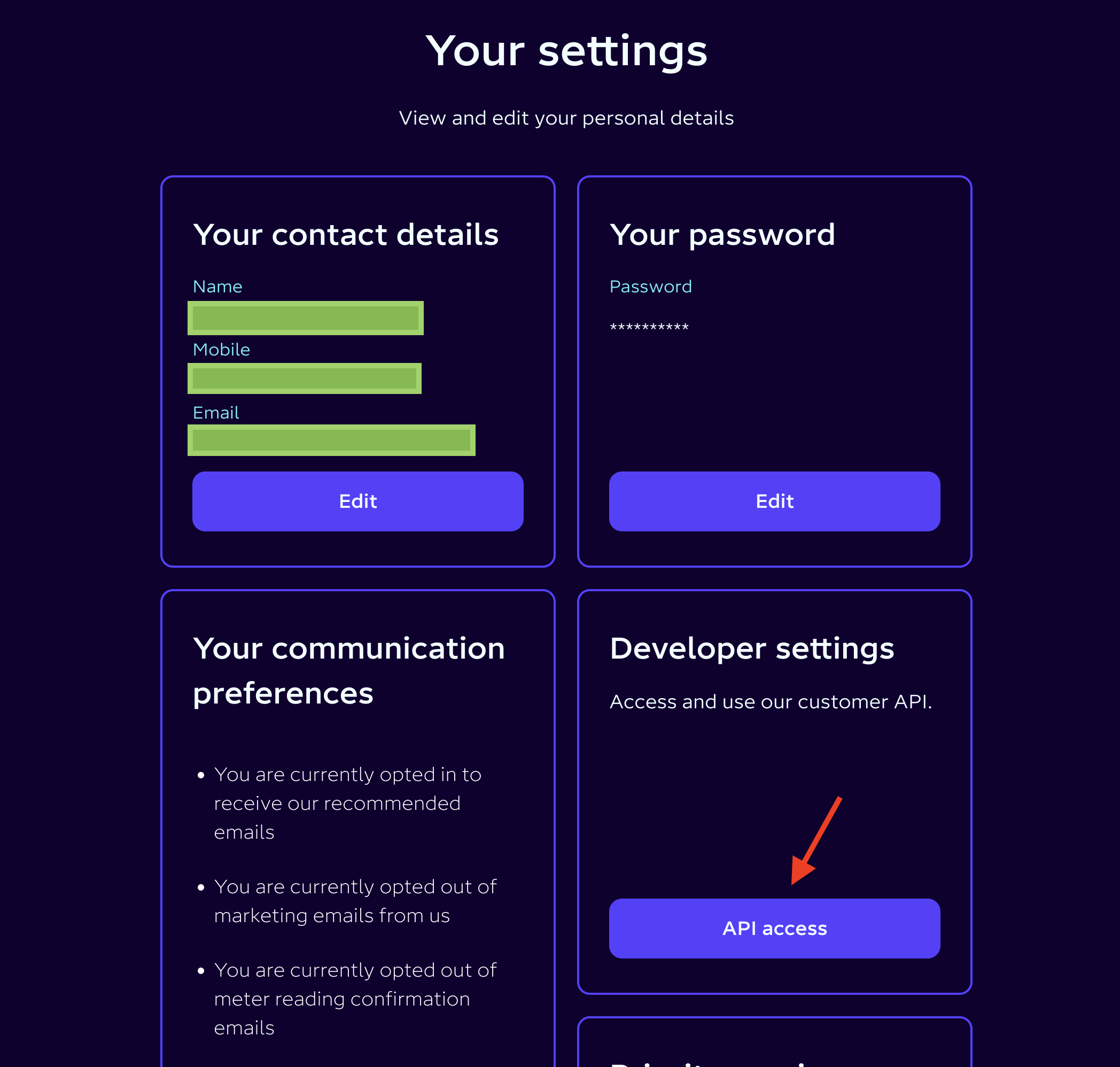
Look for Developer settings or API access. Open it, then copy the API key.
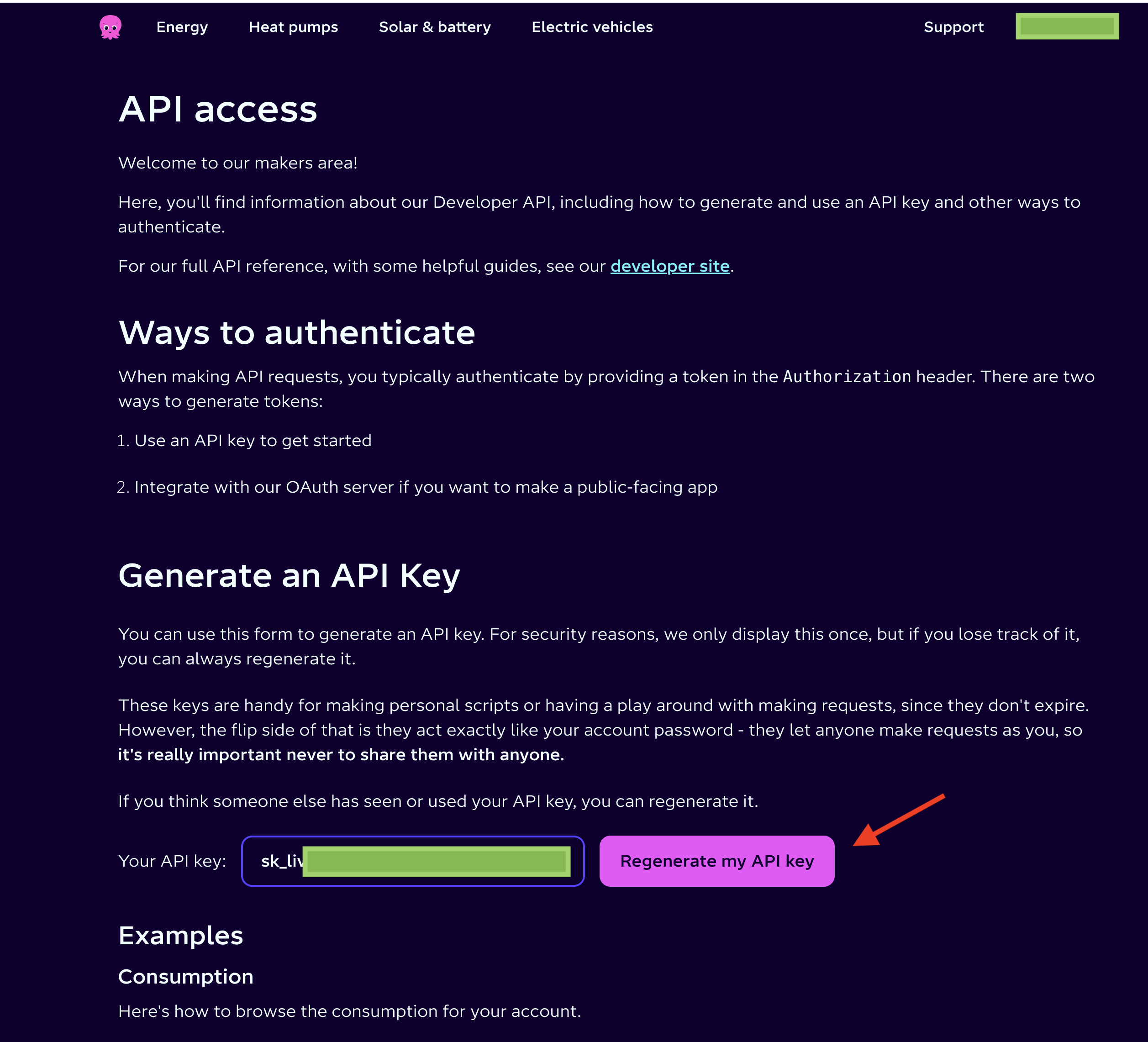
If Octopus only offers to regenerate the key, remember that any other app using the old key may need the new one as well.
Step 3: Connect Octopus in 1app.energy
In 1app.energy, open Settings > Devices, choose Octopus Energy, then enter:
- the API key
- the account number
1app.energy checks the details with Octopus before saving. A successful check confirms that Octopus accepted the credentials for an active electricity account.
Tariff sync, smart-slot sync and fresh meter data are separate stages. If Octopus is temporarily unavailable, 1app.energy leaves the connection pending instead of pretending it is verified.
What about Intelligent Octopus Go?
If the verified tariff is Intelligent Octopus Go, 1app.energy performs an extra authenticated check so it can read supported smart-charge slots where available.
Those slots are Octopus schedule evidence. They do not prove by themselves that an EV is charging or that a battery action happened. Where the home is supported and the customer enables it, 1app.energy can use that context to help coordinate EV and battery behaviour.
For the customer problem behind that, read why Octopus can drain your home battery.
Keep the API key safe
Treat the API key like a password:
- Do not post it in public.
- Do not include it in screenshots.
- Do not send it in ordinary support messages.
If you think the key has leaked, regenerate it in Octopus and replace it in every service that used the old key.
Common questions
Is the API key my Octopus password?
No. It is a separate API credential. Do not enter your normal Octopus password into the API-key field.
Can I find the API key in the mobile app?
Use the Octopus web account for this guide. If the app does not show API access, sign in through a browser.
Why does 1app.energy need the account number?
The account number identifies the Octopus account. The API key authenticates access to that account.
Can 1app.energy change my tariff with this key?
No. This setup is for supported account, tariff, meter, rate and smart-slot data. It is not used to switch your energy supply or change your tariff.
Sources checked on 27 August 2026
- Octopus REST API basics, for API-key authentication.
- Octopus REST API endpoints, for account-number use and returned meter and tariff context.
- Current 1app.energy Octopus connection and tariff-verification paths.
The screenshots were captured in June 2026. If Octopus moves a menu, look for the same destination: API access or Developer settings.
More setup guides
- How to get your SolisCloud API key
- How to get your myenergi API key for zappi and eddi
- All device setup guides
Visit 1app.energy/signup to start onboarding.
Does this sound like your home?
Your setup might already qualify.
Tell us which devices and tariff you are on. We review every request and invite in order of fit, not sign-up date.