# How to connect Axle Energy to 1app.energy
Connect Axle Energy to 1app.energy with the Axle Home Assistant token, then use 1app.energy for Axle event monitoring where available.
By 1app.energy Team
Published: 2026-09-12
URL: https://1app.energy/blog/connect-axle-energy-to-1app-energy
Tariff rates, eligibility rules and device integrations change over time. Unless a section says otherwise, numeric examples in this article are illustrative worked examples rather than a quoted supplier promise.
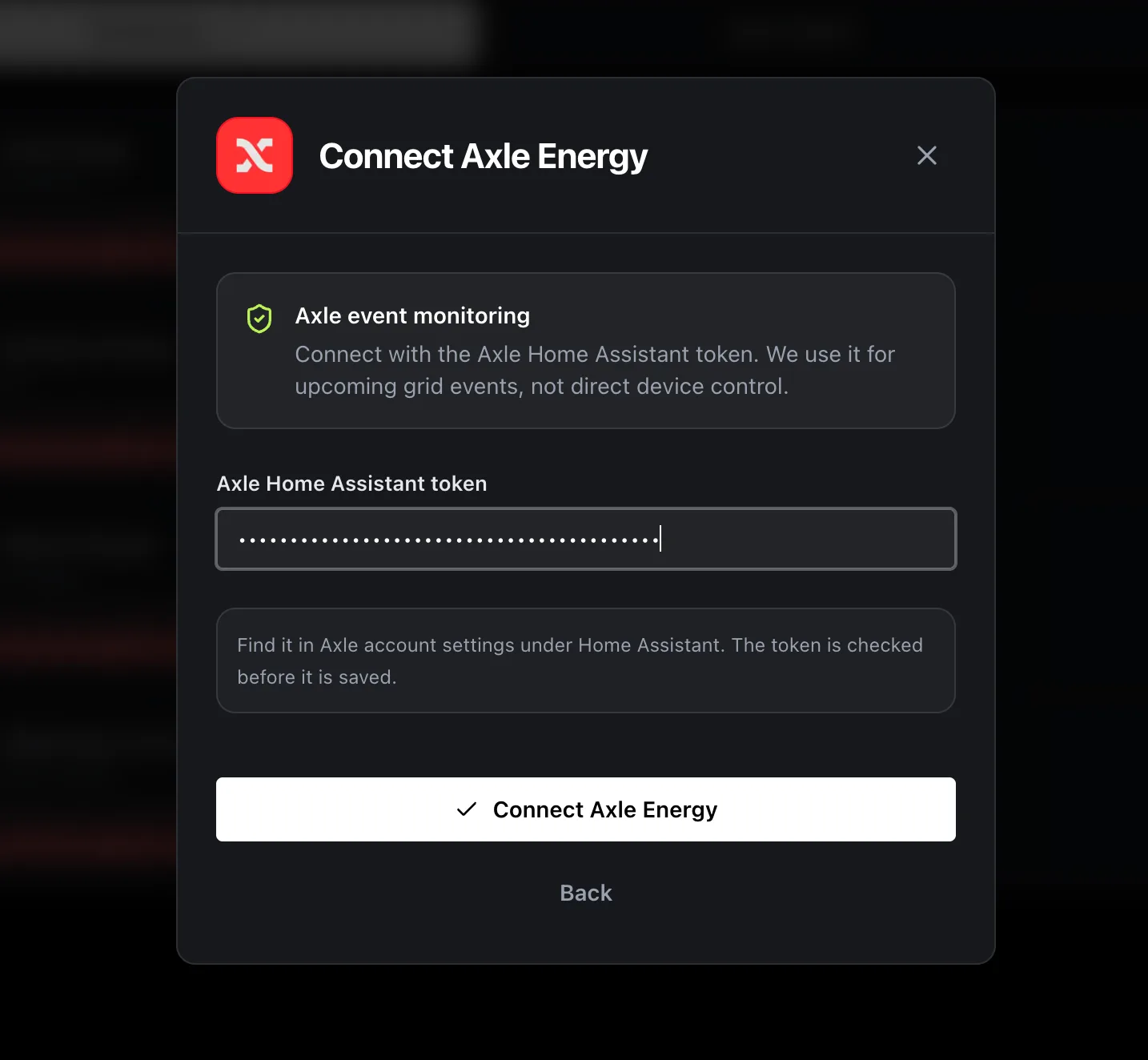 If you use **Axle Energy**, you can connect it to 1app.energy with the Home Assistant token from your Axle account.
This setup is for Axle event monitoring in 1app.energy. The token helps 1app.energy check Axle event information where available. It is not your Axle password, and it is not used by 1app.energy for direct device control through Axle.
## The quick version
1. Open your Axle account.
2. Go to **Account**, then **Settings**.
3. Open **Home Assistant**.
4. Select **Generate Token**.
5. Copy the token.
6. In 1app.energy, open **Devices**, choose **Axle Energy**, then select **Connect**.
7. Paste the token and select **Connect Axle Energy**.
That is the whole setup.
## Before you start
Check three things first:
- You can sign in to the Axle account for the home you want to connect.
- You can open 1app.energy and reach the **Devices** screen.
- You are ready to copy a token once Axle generates it.
Treat the token like a password. Do not post it in a public message or share it in a screenshot.
If you are still deciding whether Axle Energy fits your battery, read [Axle Energy VPP: what to check before joining](/blog/axle-energy-vpp-home-battery-1app-energy). For the wider 1app.energy setup flow, use the [1app.energy onboarding and settings guide](/blog/1app-energy-onboarding-settings-guide).
## Step 1: Open Account in Axle
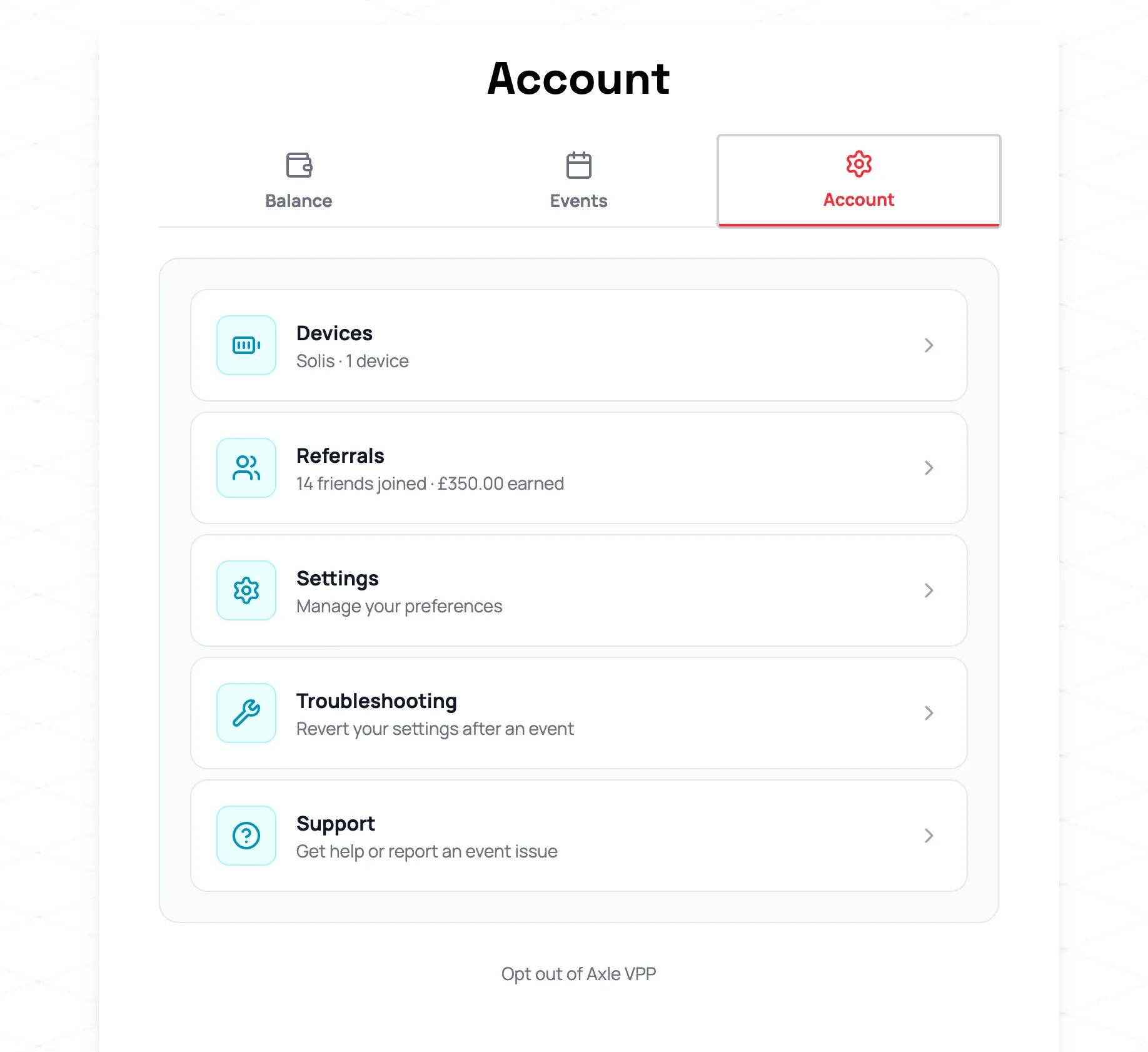
Sign in to Axle Energy and open **Account**.
On the Account screen, choose **Settings**.
If you use **Axle Energy**, you can connect it to 1app.energy with the Home Assistant token from your Axle account.
This setup is for Axle event monitoring in 1app.energy. The token helps 1app.energy check Axle event information where available. It is not your Axle password, and it is not used by 1app.energy for direct device control through Axle.
## The quick version
1. Open your Axle account.
2. Go to **Account**, then **Settings**.
3. Open **Home Assistant**.
4. Select **Generate Token**.
5. Copy the token.
6. In 1app.energy, open **Devices**, choose **Axle Energy**, then select **Connect**.
7. Paste the token and select **Connect Axle Energy**.
That is the whole setup.
## Before you start
Check three things first:
- You can sign in to the Axle account for the home you want to connect.
- You can open 1app.energy and reach the **Devices** screen.
- You are ready to copy a token once Axle generates it.
Treat the token like a password. Do not post it in a public message or share it in a screenshot.
If you are still deciding whether Axle Energy fits your battery, read [Axle Energy VPP: what to check before joining](/blog/axle-energy-vpp-home-battery-1app-energy). For the wider 1app.energy setup flow, use the [1app.energy onboarding and settings guide](/blog/1app-energy-onboarding-settings-guide).
## Step 1: Open Account in Axle
Sign in to Axle Energy and open **Account**.
On the Account screen, choose **Settings**.
 ## Step 2: Open Home Assistant
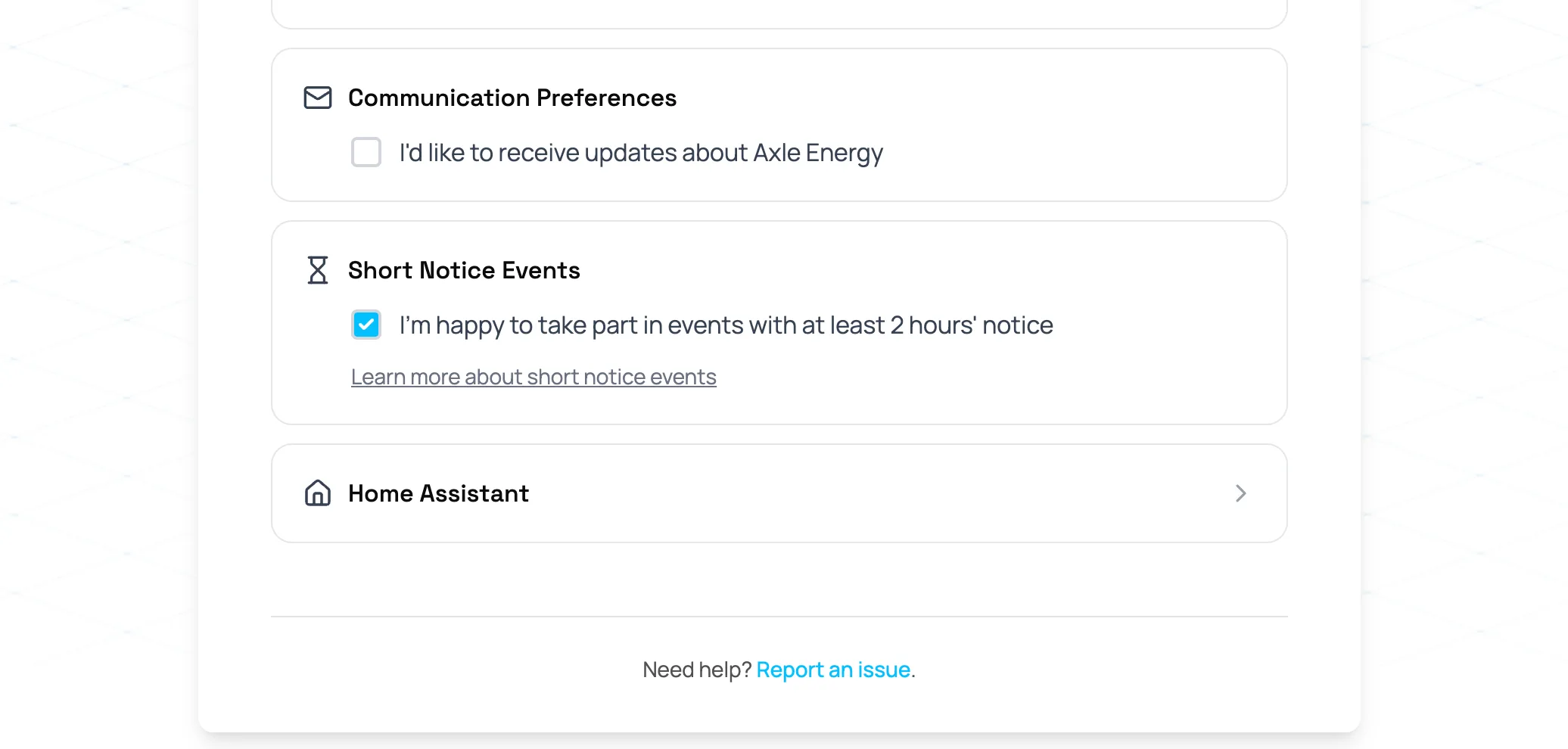
Scroll down in Axle settings until you see **Home Assistant**.
Select **Home Assistant** to open the token page.
## Step 2: Open Home Assistant
Scroll down in Axle settings until you see **Home Assistant**.
Select **Home Assistant** to open the token page.
 ## Step 3: Generate the token
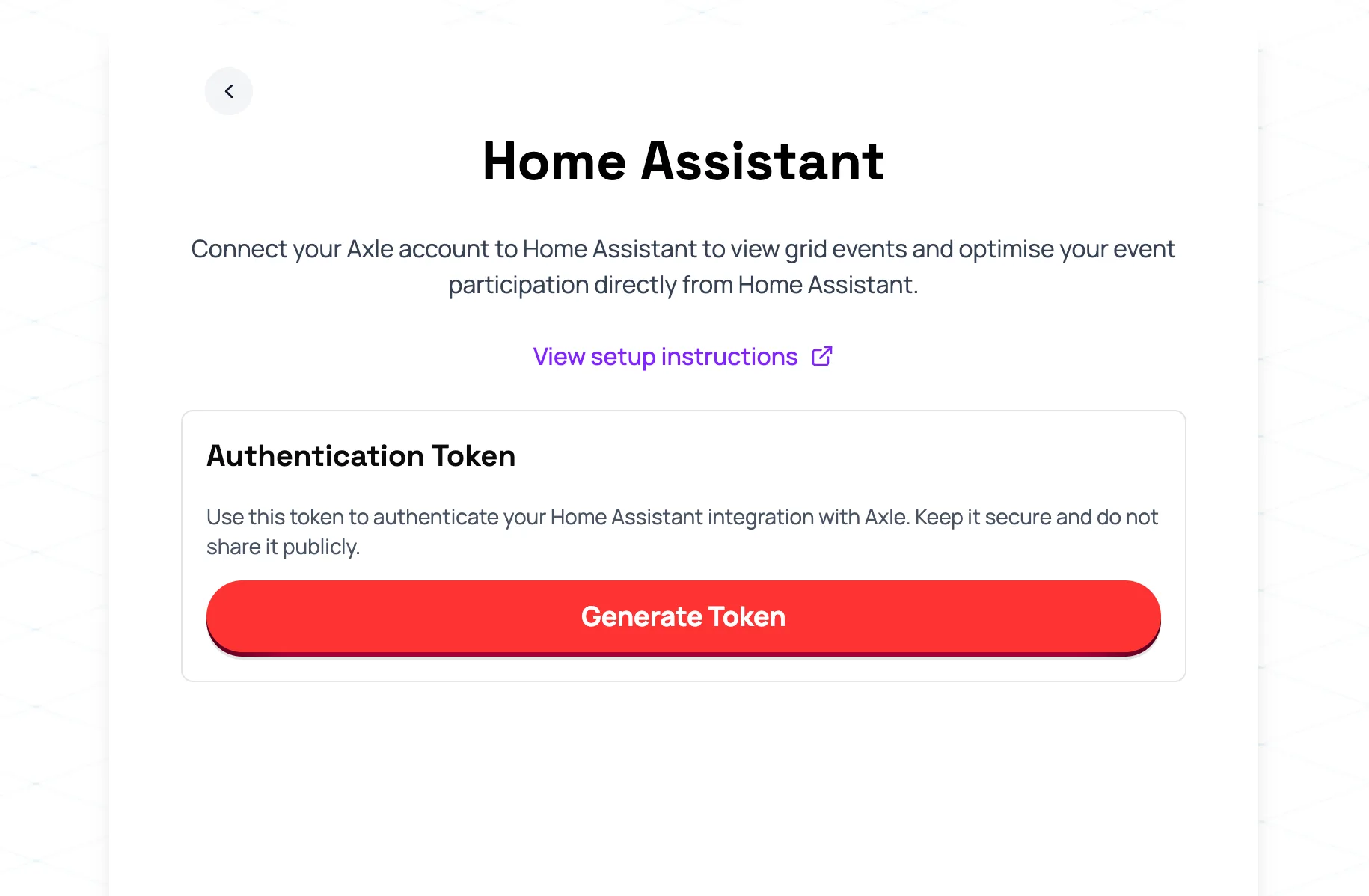
On the Home Assistant page, select **Generate Token**.
Axle will show an authentication token. Copy the full token exactly as shown.
## Step 3: Generate the token
On the Home Assistant page, select **Generate Token**.
Axle will show an authentication token. Copy the full token exactly as shown.
 If you already generated a token earlier, use the current token shown by Axle. If you regenerate it, any other app using the old token may need the new one as well.
## Step 4: Paste the token into 1app.energy
In 1app.energy, open **Devices** from setup or settings.
Choose **Axle Energy**, then select **Connect**. Paste the Axle Home Assistant token into the token field and select **Connect Axle Energy**.
1app.energy checks the token with Axle before saving the connection. If Axle rejects the token, copy it again or generate a fresh one in Axle and try again.
## What happens after connection
When the token is accepted, Axle Energy appears as a connected event-monitoring device in 1app.energy.
1app.energy can then use Axle event information where available, keep Axle event context visible in the app, and show Axle-related reporting separately from supplier export credit where the required home data is available. Axle export events are added automatically and listed under **Settings**, **Energy Events**, so you do not need to type or paste them in.
Axle still owns your Axle account, programme eligibility, event terms and payments. 1app.energy gives you a clearer place to view the home energy context around those events.
For more detail on event reporting, read [track Axle Energy credits and net daily cost in 1app.energy](/blog/track-axle-energy-credits-1app-energy).
## Common questions
### Is this the same as connecting my inverter?
No. This connects Axle Energy event monitoring. Your inverter, EV charger and tariff are separate connections in 1app.energy.
### Does this give 1app.energy direct Axle control of my device?
No. The Axle connection uses the Home Assistant token for Axle event information. Direct battery or inverter control depends on separate supported device connections and customer-enabled 1app.energy settings.
### Do I still need the Axle app?
Yes. Keep using Axle for your Axle account, event programme, eligibility and payment information.
### Can I connect Axle during 1app.energy onboarding?
Yes. If Axle Energy appears in your device setup, choose it, then paste the token from Axle.
## Final thought
The Axle connection should be simple: generate the Home Assistant token in Axle, paste it into 1app.energy, and let 1app.energy verify it before saving.
Visit [1app.energy](https://1app.energy) to start early-access onboarding.
## More from the blog
- [Track Axle Energy credits and net daily cost in 1app.energy](https://1app.energy/blog/track-axle-energy-credits-1app-energy)
- [Axle Energy VPP: what to check before joining](https://1app.energy/blog/axle-energy-vpp-home-battery-1app-energy)
- [How to get your SolisCloud API key for your Solis hybrid inverter](https://1app.energy/blog/how-to-get-soliscloud-api-key)
Does this sound like your home?
## Your setup might already qualify.
Choose your inverter to start. Supported homes create an account straight away; other setups join the compatibility list.
[Check if your setup fits](https://1app.energy/signup)
[Back to blog](https://1app.energy/blog)
If you already generated a token earlier, use the current token shown by Axle. If you regenerate it, any other app using the old token may need the new one as well.
## Step 4: Paste the token into 1app.energy
In 1app.energy, open **Devices** from setup or settings.
Choose **Axle Energy**, then select **Connect**. Paste the Axle Home Assistant token into the token field and select **Connect Axle Energy**.
1app.energy checks the token with Axle before saving the connection. If Axle rejects the token, copy it again or generate a fresh one in Axle and try again.
## What happens after connection
When the token is accepted, Axle Energy appears as a connected event-monitoring device in 1app.energy.
1app.energy can then use Axle event information where available, keep Axle event context visible in the app, and show Axle-related reporting separately from supplier export credit where the required home data is available. Axle export events are added automatically and listed under **Settings**, **Energy Events**, so you do not need to type or paste them in.
Axle still owns your Axle account, programme eligibility, event terms and payments. 1app.energy gives you a clearer place to view the home energy context around those events.
For more detail on event reporting, read [track Axle Energy credits and net daily cost in 1app.energy](/blog/track-axle-energy-credits-1app-energy).
## Common questions
### Is this the same as connecting my inverter?
No. This connects Axle Energy event monitoring. Your inverter, EV charger and tariff are separate connections in 1app.energy.
### Does this give 1app.energy direct Axle control of my device?
No. The Axle connection uses the Home Assistant token for Axle event information. Direct battery or inverter control depends on separate supported device connections and customer-enabled 1app.energy settings.
### Do I still need the Axle app?
Yes. Keep using Axle for your Axle account, event programme, eligibility and payment information.
### Can I connect Axle during 1app.energy onboarding?
Yes. If Axle Energy appears in your device setup, choose it, then paste the token from Axle.
## Final thought
The Axle connection should be simple: generate the Home Assistant token in Axle, paste it into 1app.energy, and let 1app.energy verify it before saving.
Visit [1app.energy](https://1app.energy) to start early-access onboarding.
## More from the blog
- [Track Axle Energy credits and net daily cost in 1app.energy](https://1app.energy/blog/track-axle-energy-credits-1app-energy)
- [Axle Energy VPP: what to check before joining](https://1app.energy/blog/axle-energy-vpp-home-battery-1app-energy)
- [How to get your SolisCloud API key for your Solis hybrid inverter](https://1app.energy/blog/how-to-get-soliscloud-api-key)
Does this sound like your home?
## Your setup might already qualify.
Choose your inverter to start. Supported homes create an account straight away; other setups join the compatibility list.
[Check if your setup fits](https://1app.energy/signup)
[Back to blog](https://1app.energy/blog)